Navigating the Interface
Ogadu's interface is designed around a simple layout: a sidebar on the left for navigation and main content on the right.
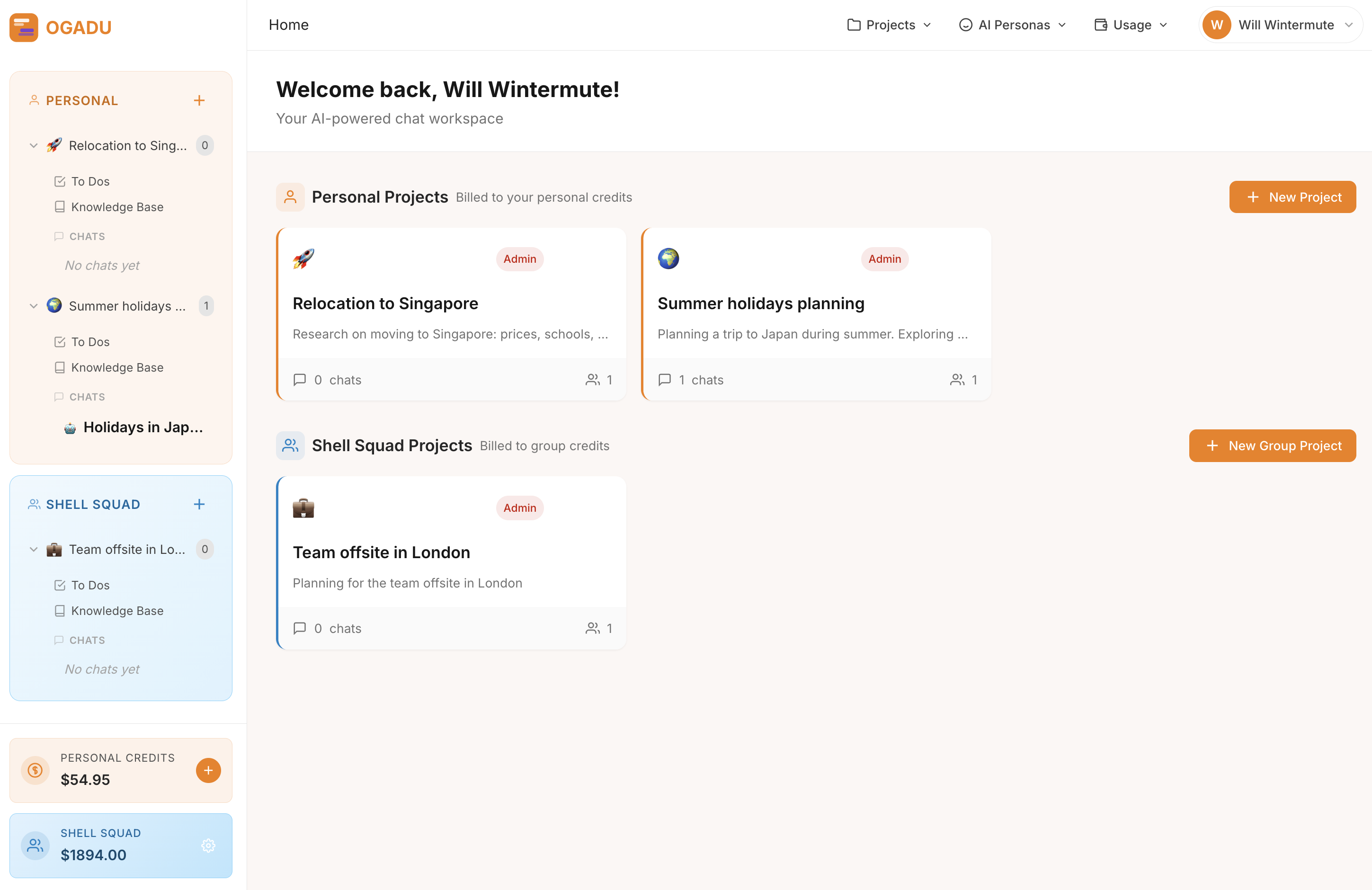
Sidebar
The sidebar is your primary navigation hub. It's always visible on desktop and accessible via the hamburger menu on mobile.
Project Tree
Your projects are organized into two sections:
- Personal (orange) — projects billed to your personal credits.
- Organization (blue) — one section per organization you belong to, billed to the group's shared credits.
Each project can be expanded to reveal:
- To Dos — jump directly to the project's to-do list.
- Knowledge Base — jump to the project's uploaded files.
- Chats — a list of all conversations in the project.

Tip
Click the arrow next to a project name to expand or collapse its chat list without navigating away from your current page.
Credit Balance
At the bottom of the sidebar, you can see your:
- Personal credit balance with a button to add credits.
- Organization credit balances — one for each organization you belong to. Admins see a gear icon linking to the organization billing page.
Top Bar
On desktop, the top bar contains three dropdown menus and your user menu.
Navigation Dropdowns
| Dropdown | Contents |
|---|---|
| Projects | Quick links to filter the dashboard: All Projects, Personal, or a specific organization. |
| AI Personas | Links to your personal personas and each organization's group personas. |
| Usage | Links to your personal billing page, each organization's billing page, and a Create Organization action. |
User Menu
Click your avatar in the top-right to access:
| Option | Description |
|---|---|
| Notifications | View your notification center. |
| Language | Switch between English, Polish, and Spanish. |
| Dark Mode | Toggle between light and dark themes. |
| Sign Out | Log out of your account. |
| Delete Account | Permanently delete your account (see Deleting Your Account). |

Dashboard
The dashboard is your home page (/). It shows all your projects as cards organized by billing type:
- Personal Projects — "Billed to your personal credits"
- Organization Projects — one section per organization, "Billed to group credits"
Each card displays:
- Project icon and name
- Description
- Your role in the project (Admin, Editor, or Reader)
- Number of chats and members
You can filter the dashboard using the Projects dropdown in the top bar or by adding ?filter=personal or ?filter=group-{name} to the URL.

Mobile Navigation
On mobile devices (screen width under 1024px):
- The sidebar is hidden by default — tap the hamburger menu to open it.
- The top bar dropdowns are replaced by accordion sections inside the sidebar for AI Personas and Usage.
- Tap the X button or the overlay to close the sidebar.
Dark Mode
Ogadu supports a dark theme. You can toggle it from:
- The User Menu → Dark Mode toggle.
- Your system preference — Ogadu automatically matches your OS setting on first visit.
Your preference is saved and persists across sessions.